Firestick IPTV: 9 Practical Easy Steps for the Ultimate Setup
A clear Firestick IPTV guide that walks you from buying a service to sideloading, configuring remote navigation, and tuning performance for family viewing.

Freya Collins
•
6 min read
•
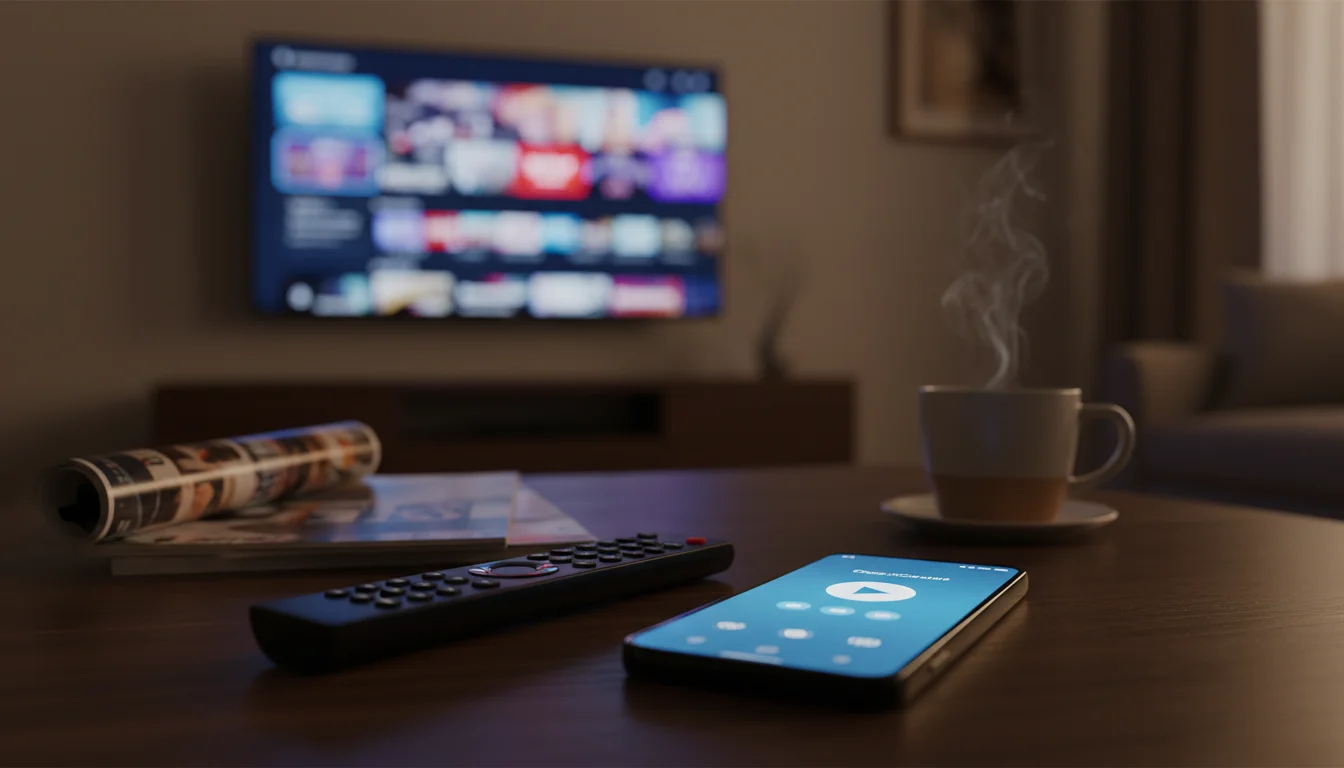
Firestick IPTV can feel tricky when the living room has limited storage, the remote is the only input, and the Play Store is not available. In this small living room scenario, you want a dependable IPTV app that is easy to control with the remote and that fits on a constrained device.
That’s why this guide follows the buyer’s journey from preparing the device, to safe sideloading, to everyday tuning. In practice you will learn what sources are reasonable, how to reduce friction with remote friendly launchers, and which settings keep channels reliable for family viewing. The result is a working Firestick IPTV setup you can maintain without a PC on the sofa.
Preparing Firestick IPTV for installation
Make the device ready, pick the right settings, and avoid common setup delays.
You will learn which options to enable and why storage and account checks matter.
Start by confirming the Firestick model, available storage, and current system version. These basics determine whether an app will install cleanly and if you will need a lightweight launcher. If you own an older 8 GB stick, storage is the tightest constraint and you should plan for smaller APKs and strict cache policies.
That’s why you should check Settings > My Fire TV > About and Settings > Applications to see free space before downloading anything. In practice, enabling Apps from Unknown Sources and ADB debugging are necessary for sideloading when the Play Store is not available.
When you enable these options, remember to disable them again after installation if you want a tighter security posture. This matters because leaving sideloading enabled increases attack surface, whereas switching it off reduces the chance of accidental installs and keeps the device simpler for family members.
Sideloading IPTV apps safely
Understand safe APK sources, the sideload flow, and minimal tools you need.
You will walk through a checklist that reduces risk and preserves storage.
First, prefer vendor or community-trusted APKs and avoid random file sharing sites. For technical context, sideloading uses the Android install path that bypasses official stores, so you should validate MD5 or SHA256 checksums when they are published.
In practice, use a temporary ADB connection or a mobile sideloading app to push the APK. If you need documentation for the tool, consult ADB for safe commands and basic usage.
The catch is that you only need a few steps to keep the process safe:
- Confirm the APK source and checksum
- Enable installation permissions briefly
- Push the APK via ADB or a downloader app
- Test the app and then revoke permissions
When you follow these items, you reduce the chance of installing modified or malicious packages. This matters because a compromised APK can leak credentials or consume bandwidth on a family network.
Native apps versus third party launchers for Firestick IPTV
Compare built in Amazon apps and lightweight third party launchers.
You will see which approach helps navigation, reduces clicks, and preserves storage.
Native Fire TV apps are designed for the remote and are typically more stable with system updates. For a working Firestick IPTV experience, choose an app with clear D-pad navigation and minimal background services. If the vendor offers a Fire TV build, prefer it over a generic Android phone APK.
Whereas third party launchers can improve discoverability and hide clutter, they also add another layer that consumes storage and may require additional permissions. In practice, some users replace the default home screen with a trimmed launcher to make the IPTV app a primary tile, which improves family access.
After you pick an approach, test launch speed and remote responsiveness. This matters because the living room constraint of remote-only input makes launch friction the single biggest usability issue for shared viewing.
Configuring remote friendly navigation
Tune focus, D-pad behavior, and remote mapping so family members can browse channels without needing a keyboard.
You will learn small UI tweaks that improve the living room experience.
Start by checking the app’s initial screen for large tiles and D-pad focus. If buttons are too small or require touch gestures, the experience will be frustrating with only the Firestick remote available.
That’s why you should prioritize apps that support directional navigation and have keyboard-independent search. In practice, configure the app to show a channel list or grid on launch and set the remote’s quick-access button to open the IPTV app when possible.
When touch-based interfaces are unavoidable, add a lightweight launcher or use the built in Fire TV shortcuts to reduce keyboard prompts. This matters because a remote-friendly layout lowers the barrier for less technical family members and shortens the path from power on to watching.
Storage and cache management
Free up space and manage app caches so updates and channel buffering do not fail.
You will discover cleanup routines and storage-safe habits for small Firesticks.
Begin by uninstalling unused apps and moving any movable media to external storage if your device supports it. For constrained Firesticks, caches can balloon and prevent app updates or cause playback stutters when space is exhausted.
That’s why regularly clearing the app cache and setting limits inside the IPTV app reduces unexpected buffering. In practice, schedule a monthly clean or use the Firestick’s Storage > Manage Installed Applications menu to inspect the largest consumers of space.
If you define simple rules, such as limiting recorded or cached content to a modest size, you prevent capacity surprises during family movie night. This matters because keeping free space ensures the app can buffer streams and apply updates without manual intervention.
RecommendedFor reliable IPTV service with stable streaming and broad device support, consider our trusted option or explore another reliable provider.
Improving Wi Fi performance on Firestick
Address buffering and channel drops by tuning the network, placing the router, and reducing interference.
You will get practical steps you can do without advanced tools.
First, verify the Firestick signal and connection type. If possible, use a wired Ethernet adapter for the Firestick to reduce latency and packet loss. For wireless setups, favor the 5 GHz band for cleaner throughput when the living room is close to the router.
In practice, move the router a bit closer and avoid large metal obstacles between the router and the TV. You can also reduce network load by pausing large downloads on other devices during peak viewing. For background reading on Wi Fi fundamentals, consult Wi Fi.
When you follow these adjustments, playback becomes more reliable and channel zapping stays snappy. This matters because streaming quality is often limited by the last meter of connectivity between the stick and the router.
Protecting account credentials on shared devices
Keep IPTV credentials safe when multiple household members use the Firestick.
You will learn simple account hygiene and lock options to avoid accidental logins.
Start by never saving provider credentials in plaintext notes on the device. Instead, use a password manager on your phone and input credentials only when necessary. If the IPTV service offers device whitelisting, register only the Firestick’s identifier to reduce abuse.
That’s why you should set a PIN for purchases and restrict access to Settings with the Fire TV parental controls. In practice, rotate shared passwords periodically and avoid using the same password across multiple services. For a general primer, see Parental controls.
When credentials are protected, the household avoids accidental changes or unauthorized account access. This matters because leaked credentials can lead to unexpected bills or loss of service when the provider blocks suspicious activity.
Testing channels and parental controls
Validate streams, confirm EPG accuracy, and lock content as needed.
You will learn a checklist to run through before handing the remote to the family.
Begin with a short test plan: open ten popular channels across different quality tiers, note any startup delays, and check Electronic Program Guide entries for accuracy. If the provider supplies M3U or an EPG URL, verify both the stream and the guide in the app before creating favorites lists.
In practice, enable parental locks for categories or channels that should be restricted, and test them while on the sofa with the remote. The catch is that some IPTV apps implement parental controls differently, so you should confirm PIN prompts occur where expected.
If you complete this checklist, you reduce interruptions during viewing and make it safe for children to use the TV. This matters because an untested setup often shows embarrassing or age-inappropriate content when the family uses the device.
Maintenance and app updates
Keep the setup healthy with lightweight maintenance, periodic updates, and a recovery plan.
You will learn the right cadence for updates and how to restore a minimal working state.
Schedule small maintenance tasks, such as clearing caches weekly and checking for app updates monthly. If you sideloaded an app, keep the APK source bookmarked so you can reapply the same build after a factory reset.
That’s why you should also create a shortlist of essential apps and remove everything else to simplify updates. In practice, if an update breaks navigation, roll back to the previous APK if possible, and only upgrade once the remote workflow is validated.
When you follow these steps, the Firestick remains stable for family use and avoids surprise downtime. This matters because predictable maintenance keeps viewing consistent and reduces support questions from household members.