IPTV setup: 9 Easy, Essential Steps for Reliable Streaming
Practical IPTV setup guidance so you can activate subscriptions, install the right apps, and tune buffering for slow home Wi Fi. Start streaming tonight with confidence.

Maris Caldwell
•
6 min read
•
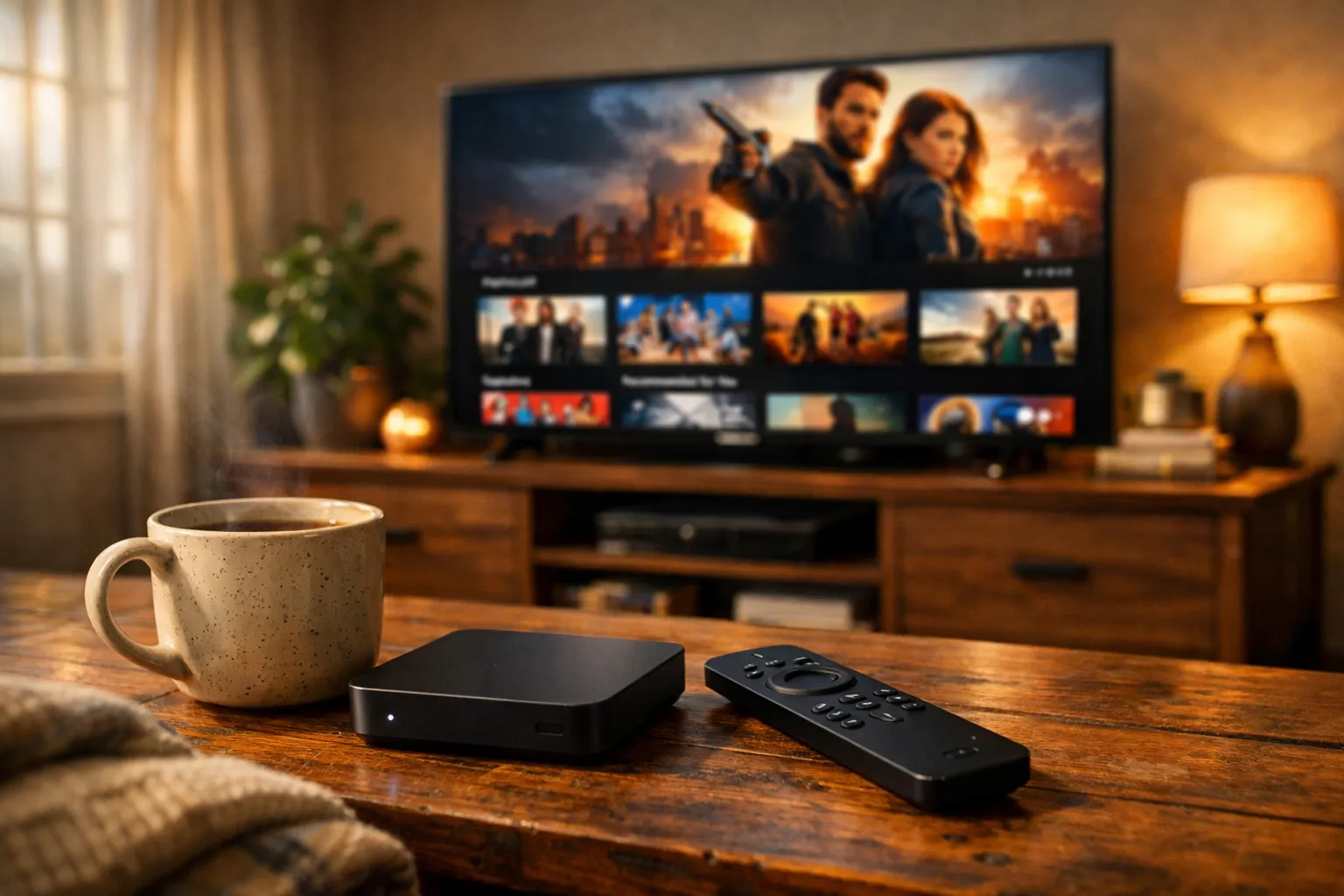
IPTV setup can feel daunting if you bought a subscription and the clock is ticking. On a Sunday afternoon with limited time, slow home Wi Fi, and mixed devices, you still want to get a TV and a phone ready before evening viewing starts. This guide walks you through the exact steps to do that.
That’s why this article focuses on practical fixes and choices. In practice you will get a clear checklist to activate credentials, pick the best app for each device, install and add playlists, and tune video and buffering settings. The goal is a working TV and phone setup by evening, without unnecessary jargon.
Account activation and credentials checklist
What to confirm first so sign in works, how to keep credentials handy, and what to check when activation fails.
Start by confirming the basics: the email you used at purchase, the activation link or code the vendor sent, and the exact username and password. If you received a downloadable PDF or a welcome email, open it and copy the server URL, port, and any device limits.
That’s why you should create a short note on your phone with the provider server address, username, password, and expiry date. In practice that saves time when you are sitting in front of the TV with a remote and a slow Wi Fi connection.
If activation fails, check whether the provider requires a device MAC address or a specific app. The catch is many providers expect an M3U link or a username/password pair instead of a signed-in account. When you run into that, contact support and paste the exact error message into their chat to speed resolution.
Choosing the right app for your device
How to match device type with app features, why some players work better on slow networks, and the trade offs between native and third party apps.
Decide whether you need a native app or a universal player. For smart TVs you often get a native app or an Android TV variant. For phones you can use vendor apps, or third party players that accept M3U playlists and EPG feeds.
In practice you will prioritize players that support adaptive streaming and local buffering. The catch is some cheap players do not handle large playlists or electronic program guide data well, which leads to long load times on slow Wi Fi.
A quick technical note: an M3U is a simple playlist file format, and an EPG is an electronic program guide that maps channels to schedules. Why it matters: a proper playlist and EPG make channel switching faster and let your DVR or recording features show program titles, which improves the viewing experience.
Installing the IPTV app on common platforms for IPTV setup
Step by step installs for Android TV, Fire TV, phones and web players, with tips when store apps are missing or blocked.
Begin with the device you will use on the TV. On Android TV, search the Play Store for the app name suggested by your provider. On Fire TV, use the Amazon store or sideload the APK if the app is not listed. For phones, install from Google Play or the App Store. For browsers, many services accept a web player.
If the app is not in the store, the alternative is sideloading. The catch is sideloading requires developer options or enabling apps from unknown sources. When you sideload, verify the provider’s recommended APK source to avoid malicious files.
Useful quick list of install steps:
- Android TV: Play Store, search and install
- Fire TV: Amazon Store or sideload via USB/ADB
- iPhone: App Store and allow profile if required
- Android phone: Google Play or trusted APK
In practice test the app after install by signing in with your credentials so you can catch activation errors while you still have time to troubleshoot.
Adding playlists and EPG data
How to add an M3U playlist and an XMLTV EPG, handle common playlist formats, and verify channel and guide mapping.
Most IPTV services provide an M3U playlist URL or a direct file and a separate EPG URL in XMLTV format. Paste the playlist URL into your app’s playlist field, and then add the EPG URL in the guide section. If the provider gave you a username and password style link, use the full URL they provided.
When you add an M3U, the catch is channel names can be inconsistent. That’s why you may need to map channels to EPG IDs inside the app if the guide shows blank listings. In practice renaming a few channels or matching by stream ID will restore proper program titles.
A brief technical note: M3U lists streams and their metadata, and XMLTV maps program schedules. Why it matters: without EPG data you can still watch channels, but you lose program search and DVR scheduling features.
Configuring video quality and buffering settings
Where to set default stream quality, how to increase buffer size for slow Wi Fi, and which codecs or adaptive options to prefer.
Change video quality in the app settings to match your internet speed. If your home connection is slow, start with a lower resolution like 720p or adaptive options if the app supports them. Then increase the buffer size or the player cache value to reduce rebuffering.
The catch is larger buffers reduce immediate responsiveness when you change channels. That’s why you should balance buffer size and channel change speed based on how often you switch. In practice increasing buffer size slightly often eliminates stutter for evening viewing on congested Wi Fi.
A technical note: adaptive streaming protocols such as HLS or DASH adjust quality live. Why it matters: adaptive streams give smoother playback on variable networks, so prefer players that list HLS or DASH support if your provider supplies them.
RecommendedFor reliable IPTV service with stable streaming and broad device support, consider our trusted option or explore another reliable provider.
Multi device and multiroom tips
How to manage device limits, transfer playlists between phone and TV, and avoid account lockouts when multiple viewers sign in.
Check your provider’s device limit before logging in on the TV and the phone. Some subscriptions allow multiple streams, others restrict concurrent connections. If your subscription is limited, test one device at a time to verify streaming works and then add the second device.
When you need the same playlist on multiple devices, the catch is manual copy can be slow on a Sunday with limited time. That’s why you should use a shared note or cloud storage to paste the M3U and EPG URLs, then open them on the other device. In practice this takes a few minutes and avoids typing long URLs on a TV remote.
Also consider the network: if you plan multiroom viewing, split devices between 2.4 GHz and 5 GHz bands to reduce interference. Why it matters: different bands can improve simultaneous streaming performance in a crowded home.
Network tweaks for smoother playback
Simple router and device changes to prioritize streaming, what to change on slow Wi Fi, and why wired connections help.
First, try a wired Ethernet connection to the TV if possible. Wired connections avoid Wi Fi interference and reduce packet loss. If wiring is not possible, move the router closer to the TV or use a 5 GHz band if the device supports it.
On the other hand, if your router lets you enable Quality of Service settings, prioritize the TV’s MAC address or the streaming app to reduce stutter during concurrent use. The catch is some home routers hide advanced settings behind different menus, so a quick web search for your router model can show exact steps.
A quick network checklist:
- Use Ethernet for the TV when possible
- Move router or use a Wi Fi extender judiciously
- Enable QoS or prioritize the streaming device
In practice these small tweaks often change a choppy evening into a stable stream.
Testing channels and recordings
How to verify channel playback, check audio and subtitles, and confirm DVR or recording features are working.
After you finish setup, scan through a handful of channels, testing both high and low numbered streams. Confirm video and audio sync, and check that subtitles or alternate audio tracks select correctly if you need them. If your app supports recording, schedule a short recording to confirm storage and playback.
If you see frequent disconnections on a specific channel, the catch may be a bad stream on the provider side. That’s why you should test multiple channels and file a support ticket with the exact channel name and timestamp when the problem occurred. In practice providers can often switch to a backup stream once you provide clear evidence.
Also test on the phone: play the same channel while the TV runs to confirm multi stream limits and to ensure your evening viewing plan works across both devices.
Post setup checklist
A quick runthrough to ensure nothing is missed, how to save settings and back up your playlists, and when to contact support.
Finish by saving screenshots of your settings and copying the playlist and EPG URLs into a safe note on your phone. Confirm account credentials work in the app and that device limits are not exceeded. Finally, reboot the router and the streaming device once to ensure settings persist.
When you run into stubborn playback issues, the catch is many problems are either network related or due to wrong playlist mapping. That’s why you should gather logs or screenshots before contacting support, and include device type, app version, and the exact error text. In practice that speeds resolution and avoids back and forth troubleshooting.
Useful links for reference include IPTV, M3U, EPG, and Wi-Fi.