Nordic IPTV buffering: 9 Practical Proven Fixes for Smooth Play
A hands-on troubleshooting guide to stop Nordic IPTV buffering, with measured diagnostics and prioritized fixes so you can watch live matches with minimal interruptions.

Maris Caldwell
•
6 min read
•
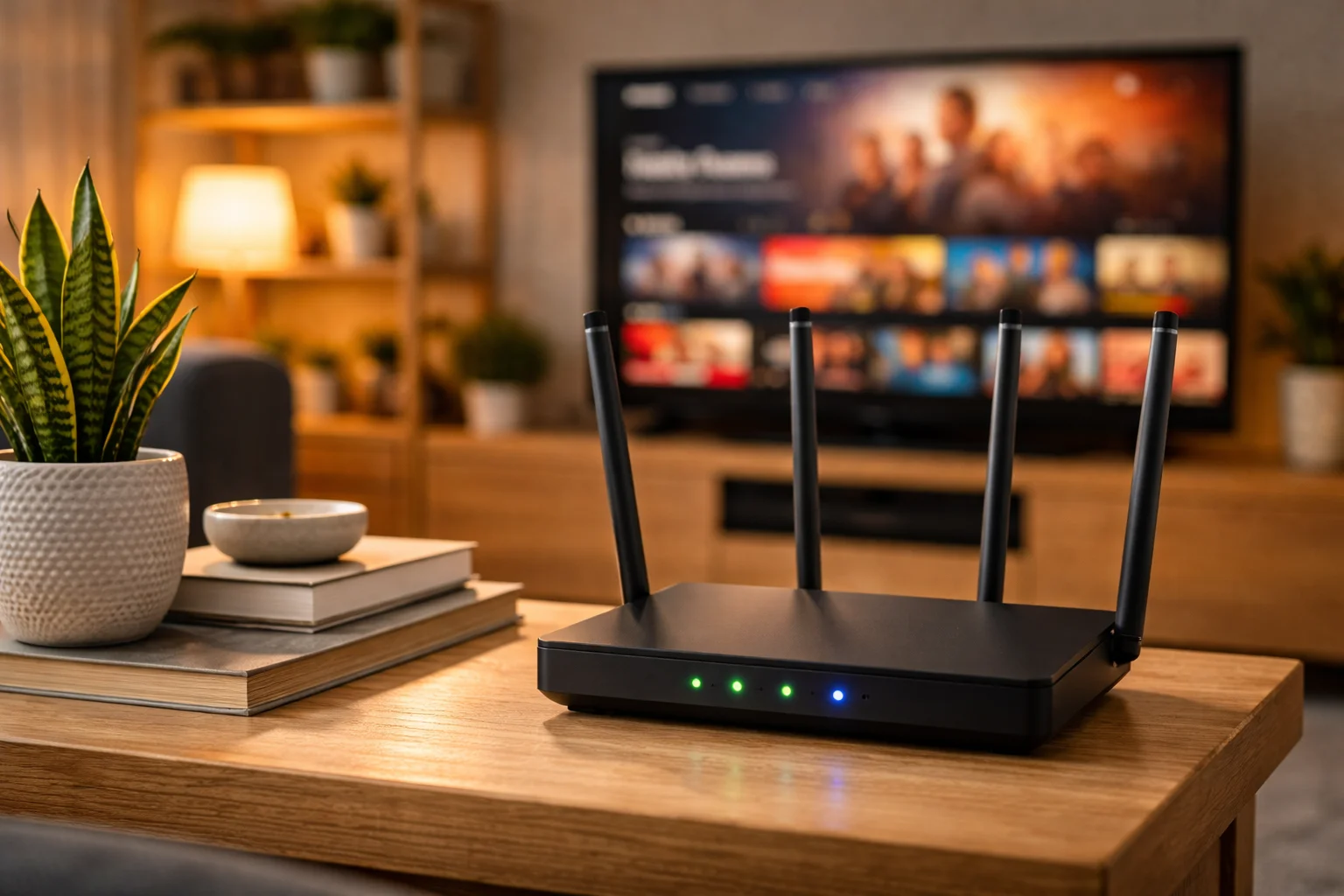
Nordic IPTV buffering can turn a packed match night into a string of pauses and rebuffering icons. On a shared apartment Wi-Fi with limited upstream, you need practical, prioritized fixes that actually improve live playback.
That’s why this guide focuses on measurable diagnostics and hands-on remedies you can try in order, from quick temporary workarounds before kickoff to longer term investments. You will learn how to measure bandwidth, isolate latency and jitter, tune your router, and pick the right Wi-Fi settings so the match stays live with minimal lag.
In practice, keep this as a checklist: test first, apply the highest-impact tweak, then re-measure. The scenario of multiple devices and a constrained upstream is used once below to show which fixes help most on match night.
Why Nordic IPTV buffering happens with streams
Common root causes, how the stream pipeline reacts, why buffering spikes during events
Start with the basics: buffering is the visible symptom when the player runs out of decoded video frames because arrival is slower or more bursty than consumption. IPTV carries video over your provider s distribution network and your home network, so delays can come from either side.
In practice, three technical causes dominate: insufficient sustained bandwidth, high latency and jitter, and queuing in network devices. After that, codec or player-level bitrate adaptation can make buffering worse if it reacts too slowly.
Why it matters: understanding which layer is failing keeps you from wasting time tweaking the wrong device. For background on the service model see IPTV.
How to measure bandwidth, latency and jitter for Nordic IPTV
What to test first, simple tools to measure real metrics, a reproducible test routine
If you want reliable fixes, start by measuring. First, test raw throughput with a wired device using a known speed test site, then reproduce while streaming the channel to see real impact.
When you run tests, measure three things: throughput (Mbps), latency (ms round trip), and jitter (variation in latency). Use tools that show jitter or use continuous ping to the provider s CDN, and capture results for several minutes. The catch is single-shot tests can lie; you need sustained measurements during the problem period.
Why it matters: IPTV needs sustained throughput and low jitter more than bursty peak speed. For background about variable latency see Bufferbloat.
Router and QoS tweaks to reduce buffering
Prioritized router settings, what to change first, quick QoS rules that yield real gains
If testing shows congestion or bufferbloat inside the home, the router is often the highest leverage fix. First, enable an active queue management feature if available, such as fq_codel or cake, to reduce queue delay.
Next, configure simple QoS prioritization: mark IPTV traffic and give it a higher priority or guaranteed minimum bandwidth while keeping burst allowances for other traffic. On many consumer routers this is called Device Priority or Traffic Rules.
Why it matters: without queue management, a single large upload or cloud backup can fill buffers and spike latency, which causes IPTV players to stall. Recommended reading includes general Quality of Service) and vendor guides like OpenWrt QoS.
- Enable fq_codel or cake where available
- Create a rule to prioritize the IPTV device or multicast stream
- Limit uplink saturation with a small headroom setting
When you apply these rules, re-run the latency and jitter tests to confirm improvement.
When to prefer wired Ethernet over Wi-Fi for Nordic IPTV
Why Ethernet is usually superior, when Wi-Fi is acceptable, how to prioritize devices
Wired Ethernet is the most reliable way to remove a variable link from the chain. If your IPTV device is capable of Ethernet, plug it in. This eliminates contention with phones and guests, and removes interference and channel hopping as failure points.
On the other hand, Wi-Fi is convenient and can be stable in a lightly loaded, well-configured 5 GHz network. You should prefer wired when low latency and sustained bitrate matter, for example during live match nights or if you observed packet loss on wireless.
Why it matters: a wired link converts an unpredictable wireless medium into a deterministic wired one, often resolving buffering without other changes. When Ethernet is not possible, treat Wi-Fi as a shared resource and follow the Wi-Fi tuning section below.
Wi-Fi fixes: channels, 5 GHz, mesh placement and interference
Practical changes you can make to Wi-Fi, what to avoid, how to test coverage
Wi-Fi problems are a common source of stalls for Nordic IPTV buffering. First, prefer the 5 GHz band for the IPTV device to gain higher throughput and less interference, when range permits. Then, pick a clean 5 GHz channel using a scanning app and move the access point if the signal is weak.
In practice, mesh systems help but only if backhaul is adequate. Place mesh nodes to keep devices on the fastest hop, and avoid placing nodes near large metal objects or microwaves. Also disable automatic band steering temporarily to pin a device to 5 GHz while testing.
Why it matters: wireless interference and poor placement create retransmits and jitter, which the player interprets as missing data and causes buffering. For technical context on Wi-Fi channels, consult vendor guidance and the regional regulator s recommendations.
RecommendedFor reliable IPTV service with stable streaming and broad device support, consider our trusted option or explore another reliable provider.
Stream quality settings and balancing resolution vs stability
How adaptive bitrate works, when to lower resolution, stepwise quality changes that reduce stalls
Most IPTV players use adaptive bitrate streaming that changes resolution depending on observed throughput. If the player is slow to switch down, you will see buffering during bitrate drops. Start by setting a manual quality cap for live events if available, or enable a lower default bitrate.
Then, where possible, prefer settings that restrict resolution rather than bitrate-only toggles, because a lower resolution at the same codec is more stable under constrained links. The catch is reducing resolution trades visual fidelity for smoother playback, which is a conscious trade.
Why it matters: deliberately capping quality is a low-cost, immediate fix that reduces rebuffering during congested periods and often yields the best viewer experience for critical live matches.
Provider side issues and how to detect them
Signs the problem is upstream, which tests isolate provider faults, how to report issues effectively
Sometimes Nordic IPTV buffering originates with the provider or CDN rather than your home network. Look for patterns: spikes during specific channels or events, problems at the same times for wired clients, or complaints from other viewers.
To isolate, test with a different provider endpoint if available, or use a VPN to see if performance changes. Also capture traceroutes and round trip time graphs to the provider s servers. When you contact support, include timestamps, test results, and traceroute output to accelerate diagnosis.
Why it matters: without clear test data, provider support often performs generic resets. Concrete measurements let you escalate to engineering and shorten mean time to resolution. For protocol context see RTP.
Temporary fixes for big live events and slow connections
Quick workarounds for match night, last-minute prioritization tips, what to do when bandwidth is scarce
On a packed match night with multiple devices on the apartment Wi-Fi, prioritize the streaming device and remove non-essential traffic. First, ask roommates to pause large uploads and updates, and temporarily disable automatic cloud backups.
Then, if your router supports device-level priority or a guest network, move other devices to the guest SSID and give the IPTV device top priority. You can also lower stream resolution 10 to 20 minutes before kickoff to pre-warm the player at a lower bitrate.
Why it matters: these temporary measures are low friction and often keep a live match smooth until you can implement permanent fixes. In this guide s scenario, prioritization and upload limits typically yield the largest immediate improvement.
Investments that reduce buffering long term
Hardware and service upgrades that pay off, when to change ISP, which router features to seek
If buffering remains after tuning, consider investments that reduce buffering over the long term. The three highest-impact upgrades are a better router with AQM and QoS support, wired access for the main streaming device, and a higher upstream from your ISP.
On the other hand, upgrading Wi-Fi alone without fixing uplink saturation or replacing a poor router will only partially help. When you evaluate routers, look for explicit support for cake or fq_codel and enough CPU to avoid becoming a bottleneck.
Why it matters: targeted hardware and plan changes convert ongoing troubleshooting into durable reliability. For standards and architecture references consult provider documentation and network quality resources like IPTV.