Nordic IPTV setup: 9 Easy Proven Steps for Reliable TV
A practical Nordic IPTV setup walkthrough that guides you through Android TV, Firestick, and Smart TV installs so you get stable live TV with fewer headaches.

Gideon Clarke
•
6 min read
•
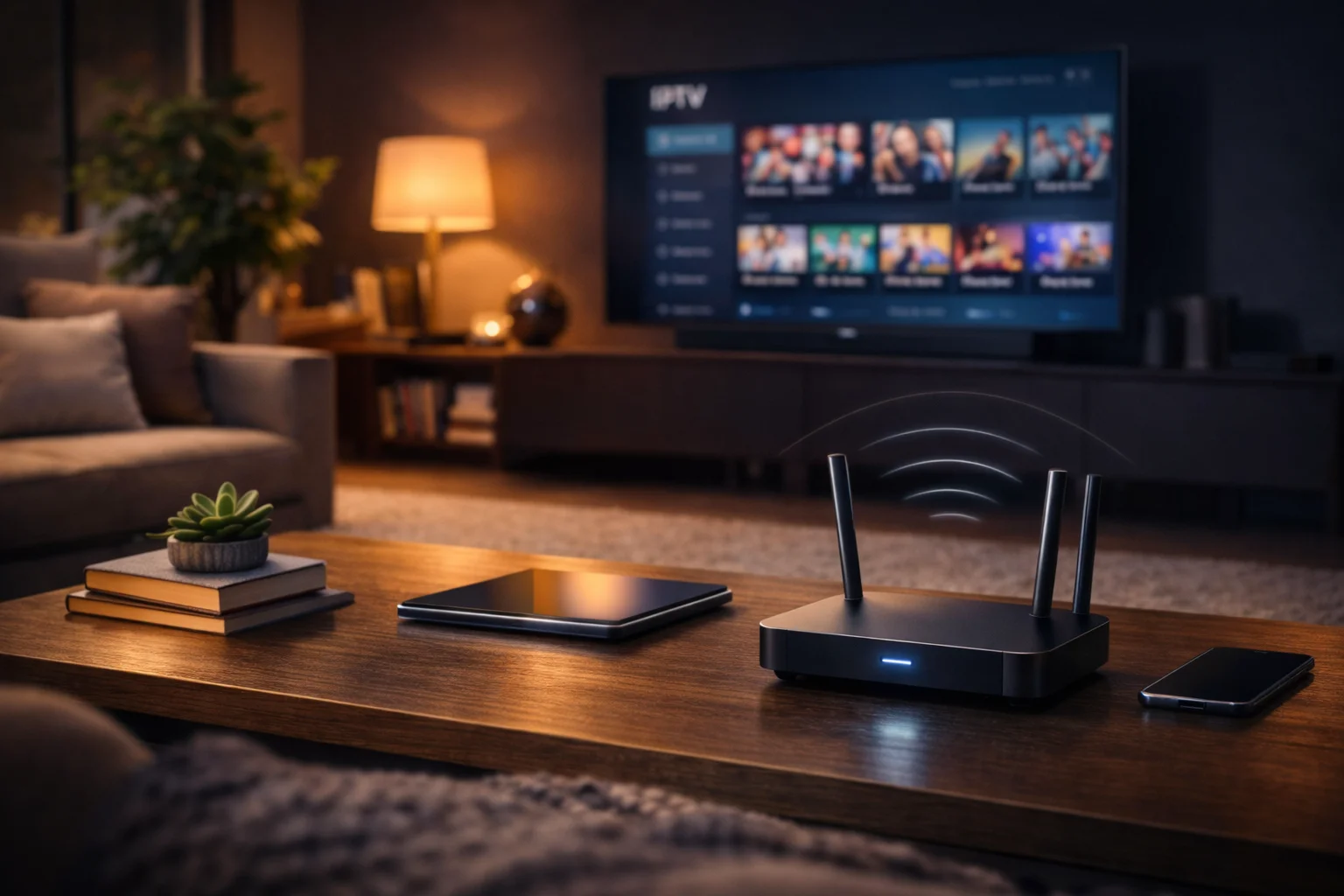
If you need a trustworthy Nordic IPTV setup for the weekend, this guide takes you step by step. In the first paragraph you get the main promise: clear, practical instructions to install on Android TV, Firestick, and Smart TVs and to add M3U and EPG so channels play reliably.
That’s why this matters for your holiday cabin weekend with flaky Wi-Fi and no Ethernet. In that scenario you need a setup that conserves bandwidth, reduces buffering, and gives quick fixes when a channel fails. In practice I wrote this as an independent tester who documents exact steps, tradeoffs, and quick checks you can run without specialist tools.
When you follow the steps below you will prepare, install, verify, and troubleshoot Nordic IPTV setup on common devices, so you spend less time fiddling and more time watching.
What to prepare before you start Nordic IPTV setup
Checklist items you should confirm, what tools matter, and quick bandwidth checks so you avoid early failures.
Practical prep that saves time.
Start by gathering the essentials for a smooth Nordic IPTV setup. Confirm your subscription details, the M3U playlist URL or file, and EPG address from the provider. Also make sure you have the account credentials and any activation codes handy.
That’s why you should check your network first. Run a basic speed test and note download bandwidth and latency. For live TV plan on at least 5 Mbps per HD stream, and less if the provider offers adaptive streams. If you are in a weak Wi-Fi spot, try moving the Firestick or TV closer to the router or use a travel router to create a local hotspot.
In practice bring a USB power adapter that supplies 1.5A or more for sticks, a short HDMI extension if ports are tight, and an Ethernet adapter if you can get a cable. These small items prevent the most common interruptions during setup.
Prepare these quick tools and checks:
- Subscription M3U URL or file
- EPG URL or XML guide
- Device login details and remote
- Speed test app or site
This checklist prevents the typical stop-and-search delays that ruin a short installation window.
Choosing the right app for your Nordic IPTV subscription
How to pick an app that matches your playlist and EPG format, why app choice affects stability, and tradeoffs between free and paid players.
First, understand what app types support Nordic IPTV. There are native IPTV players, third party apps that accept M3U and EPG, and platform-specific store apps. Common app features to prefer include M3U playlist import, EPG mapping, catch up support, and player codec flexibility.
That’s why matching features to your provider matters. If the provider supplies an M3U and separate EPG, choose a player that lets you add both. If the provider uses an encrypted portal, you may need a web portal or a vendor-specific app.
In practice the most dependable choices on Android TV and Firestick are IPTV players that accept remote M3U links and EPG URLs, such as the well known IPTV players found in app stores. For Android TV, check compatibility with Android TV guidelines. For Fire TV, consider store availability through Amazon Fire TV. If you prefer an open reference, review general IPTV notes to understand playlist formats.
Why it matters: the right player reduces buffering, simplifies channel lists, and makes EPG mapping accurate so you see correct program times.
Step by step Android TV setup for Nordic IPTV
A calm, reproducible Android TV walkthrough that covers installing the app, importing M3U, mapping EPG, and testing playback.
Clear steps you can follow on most Android TV devices.
Begin on Android TV by opening the Play Store and finding an IPTV player that supports M3U and EPG import. Install the chosen app, then open it and select the option to add a playlist by URL or file. Enter your Nordic M3U URL exactly as provided.
When you add the playlist include the EPG address if the app asks for it. That maps channel names to program guides, and it avoids mismatched or empty guides. After import, allow the app to refresh the channel list and EPG. The EPG standard is important, see EPG for the general format.
In practice test three channels that vary by bitrate, one SD and two HD, to check buffering under your current Wi-Fi. If you see repeated buffering, lower the number of simultaneous streams or select a lower quality profile in the app. If channels are blank, re-check the M3U link for typos and confirm the provider has not rotated the playlist.
If you need a local file upload instead of a URL, transfer the M3U to a USB drive, connect the drive, and use the app’s file import option. This method is useful when the cabin Wi-Fi is too flaky to download the playlist during setup.
Fire TV and Firestick setup for Nordic IPTV
Precise Fire TV steps tailored to a Firestick in a holiday cabin, including store installs, sideload tips, and power and Wi-Fi optimizations to avoid dropouts.
Start by ensuring the Firestick is powered with the supplied USB adapter, not the TV USB port if output is limited. Then open the Amazon store and search for your selected IPTV player. Install and launch the app.
When the app is not available in the store you may need to sideload it. That’s done by enabling Apps from Unknown Sources and using a sideload tool or adb install from a desktop. The catch is sideloading can be blocked in some rental setups, so prefer store apps when possible.
In practice for the holiday cabin scenario, position the Firestick in sight of the router, or use a short HDMI extender so the stick is not tucked behind the TV where Wi-Fi weakens. Also test a quick power cycle if the stick becomes sluggish after heavy use.
Verify playback on Firestick by starting three channels and noting buffer events and bitrate changes. If buffering persists, switch the app to software decoding if available, or reduce resolution to conserve bandwidth.
Smart TV installation tips for Nordic IPTV apps
How to install on Tizen, webOS, or other Smart TV platforms, when to prefer native apps versus casting, and how to handle app limitations on Smart TV firmware.
First, check the Smart TV app store for a native IPTV player. Many Smart TVs have limited codec support and less flexible EPG handling than Android TV or Firestick. That’s why testing a single channel first is a low risk way to confirm playback and guide decisions.
On the other hand if the TV store does not offer a suitable player, use casting from a phone or a connected Firestick/Android box. Casting gives you the advantages of a more capable player and keeps the TV firmware out of the equation.
In practice use the TV store if available, but keep a backup plan such as a streaming stick. The TV firmware may restrict background memory or interrupt the app when the TV switches inputs. Also note that remote control mapping can differ, so confirm that channel switching and volume work as expected.
Why it matters: Smart TVs vary a lot, so knowing the limits up front saves time and avoids broken channel lists or empty guides during your stay.
RecommendedFor reliable IPTV service with stable streaming and broad device support, consider our trusted option or explore another reliable provider.
Adding M3U playlists and connecting an EPG to Nordic IPTV
Exact steps to add M3U and EPG, differences between URL and file import, and quick verifications for correct channel mapping and times.
Begin by deciding whether to import an M3U by URL or by file. A remote URL lets the app refresh automatically when the provider updates playlists. A local file is better when Wi-Fi is unreliable because it avoids remote fetch failures. Choose the method that matches your cabin connectivity.
That’s why you should verify EPG mapping after import. If channels do not show program titles or times, the EPG URL may use different channel identifiers than the M3U. Many players provide a channel mapping tool to reconcile ID differences. If the player supports it, upload the EPG as XMLTV or use a remote EPG link.
In practice follow these steps:
- Add playlist by URL or file in the player
- Add the EPG URL in the EPG or guide settings
- Trigger a manual EPG refresh
If mapping fails, try a different player or use a utility that converts IDs. Also see the M3U reference for playlist structure. Why it matters: correct EPG mapping prevents mismatches where channel names appear but program times are wrong.
Verifying channels and first play troubleshooting
Checks to confirm channels play, how to read player logs or error messages, and quick fixes for buffering, black screens, and missing audio.
Start verification by picking channels with different bitrates and codecs. If the player shows audio but no video, the device may lack the codec. If there is video but no audio, test another channel or toggle audio tracks in the player.
In practice address buffering by pausing for 10 seconds to let the buffer fill, switching to a lower-quality stream, or forcing the player to use UDP versus HTTP if the option exists. Many players also show simple error messages like 403 or 404 which point to authentication or removed playlist entries.
When you see repeated failures try these quick fixes:
- Confirm the M3U URL is current and not expired
- Restart the app and device
- Switch DNS to a public resolver if name resolution looks slow
If errors persist, capture the exact error text and re-request a fresh playlist from the provider. Why it matters: a quick verification step avoids sitting through an entire setup with invisible failures that only appear under load.
Keeping the app and playlists updated after Nordic IPTV setup
Routine maintenance tips, how and when to refresh playlists, and practices to avoid stale EPG data and broken channels over time.
Plan for simple maintenance after initial Nordic IPTV setup. Many providers refresh playlists at scheduled intervals. Set the player to refresh playlists and EPG on app start or at hourly intervals if available. That reduces stale entries and missing channels.
On the other hand be cautious with automatic updates in a low bandwidth setting. In a cabin with limited data, prefer manual refresh or schedule refreshes during low use times. This conserves capacity and avoids unexpected consumption spikes.
In practice keep the player and the device firmware up to date for security and codec improvements. Also back up your working M3U file locally so you can reimport quickly if the remote playlist changes. Finally, unsubscribe from unused channels or groups in the playlist to speed loading and reduce memory pressure on sticks and older TVs.
Common setup mistakes and how to avoid them
Real world pitfalls I see during installations, stepwise remedies, and preventative habits to avoid the same mistakes on your setup weekend.
A frequent mistake is pasting the M3U URL with stray spaces or truncated characters. Always paste into a plain text editor first to confirm the full URL. The catch is some mobile apps trim long URLs visually, but the paste may be incomplete.
On the other hand many people rely on the TV USB port for power which can result in underpowered sticks and intermittent freezes. Use a robust external power adapter instead. In practice verify power supply ratings and move the device for better Wi-Fi reception.
Other common errors include mismatched EPG IDs and using a player that lacks codec support. Prevent these issues by testing three sample channels before you assume the whole list is fine. Also keep a backup player installed so you can switch quickly if the first app shows missing audio or blank channels.
Why it matters: avoiding these simple errors typically resolves 80 percent of first-run problems and keeps your weekend viewing uninterrupted.