Firestick IPTV: 9 Practical Steps for Ultimate Setup
A calm, stepwise Firestick IPTV guide that shows how to install apps, add a subscription, and tune playback so live channels stay smooth on limited apartment Wi Fi.

Rowan Fletcher
•
6 min read
•
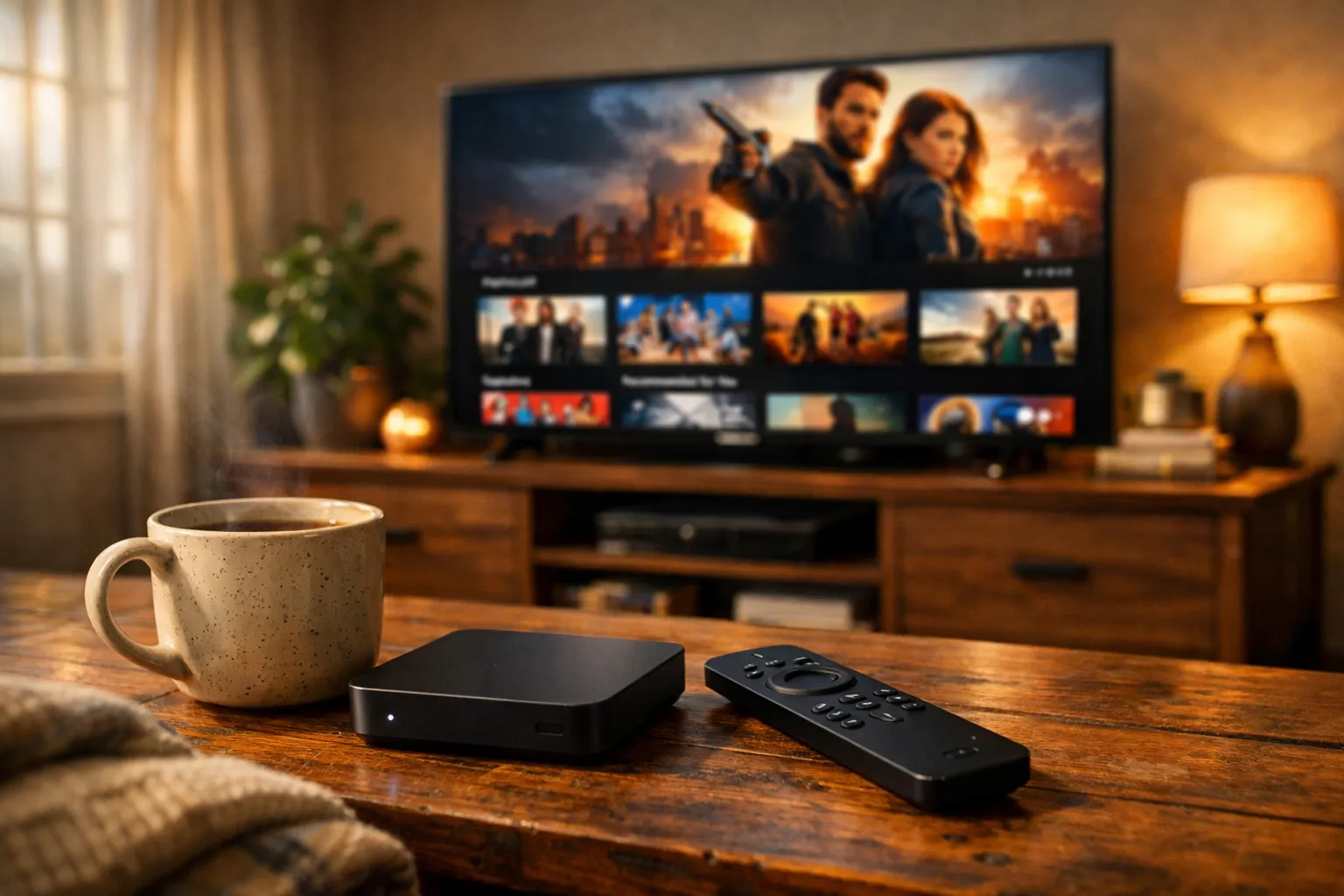
Firestick IPTV works well when you match the right app, network settings, and provider choice to your device. In a one bedroom apartment with shared building Wi Fi that spikes at dinner, you can still get smooth live channels if you prioritize app choice and buffering settings.
That’s why this guide walks you through each step, from picking a client to automating reconnection, with testing and troubleshooting tips based on hands on testing. In practice you will learn how to install IPTV on Firestick, configure credentials, set video output and buffer, and apply low bandwidth strategies so streams stay reliable when the network is constrained.
Choosing the right Firestick IPTV client
Which app will give you the cleanest interface and least buffering, how to weigh client features, and what compatibility matters for Fire TV devices.
Start by deciding what matters most to you: channel guide layout, EPG compatibility, catch up, or minimal memory footprint. That’s why I focus on tested clients that run smoothly on Fire TV hardware, including official ecosystem apps and popular third party players. Understanding IPTV basics helps you decide between players that expect an M3U link, a portal URL, or a provider credential.
In practice, pick a client that supports playlists and EPGs and that exposes caching or buffer controls. The catch is some visually attractive clients use more memory which can cause app restarts on older Firestick models. This matters because fewer restarts mean less interruption during live sports or evening news.
Whereas some users prefer web based portals, Firestick owners often get the best results with native apps that support hardware decoding and variable buffer sizes. Keep an eye out for known clients like IPTV Smarters and apps that let you change the decoder type, because those options directly affect buffering and playback quality.
Enabling sideloading and safe install sources
How to prepare your Firestick to install apps outside the Appstore, what permissions to accept, and how to keep the device secure while sideloading.
Before you install many IPTV clients, you will often enable sideloading. That’s why the first configuration step is to open Settings, go to My Fire TV, then Developer Options, and enable both Apps from Unknown Sources and ADB debugging when you need to sideload. This allows you to use tools like Downloader to fetch APKs directly on the device.
In practice you should only sideload from trusted vendor sites. If you doubt a download, avoid it. The catch is that enabling unknown sources increases risk unless you manage where you install APKs from. This matters because a compromised app can affect your network and privacy.
When possible, prefer the official Amazon Fire TV store or well known vendor pages. If you do sideload, revoke developer access after installation and keep ADB disabled except for maintenance. That reduces attack surface while keeping your setup functional.
Installing and configuring your IPTV login
Step by step install tips, entering credentials cleanly on a Firestick remote, and how to organize playlists and EPG sources for reliable channel access.
First, install your chosen client. That’s why I recommend the Downloader app for direct APK installs or using the Appstore when available. After installation you will add the subscription details your provider gave you, usually an M3U URL, portal URL, or username and password combination. If you have trouble typing long URLs with the Fire remote, use the Fire TV mobile app or paste tools to speed entry.
In practice organize your playlists and EPGs immediately, because a tidy guide reduces accidental channel drops. The catch is mismatched EPG timezones and wrong group names cause guide misalignment. This matters because correct mapping keeps channel names and schedules synchronized, which improves navigation during live events.
Try these quick steps:
- Gather credentials and URLs from your provider
- Use the Fire TV app for easy typing
- Add EPG XML or JSON if provided
Whereas some clients auto detect EPG, others require manual mapping. Follow the client documentation and test a handful of channels before you settle on the full playlist.
Setting video output, buffering and cache settings
How to pick resolution and decoder modes, where to change buffer sizes, and what cache options reduce rebuffering on constrained networks.
Video output and buffer settings are the most direct levers to reduce stutter. That’s why you should set the Firestick display to match your TV resolution and then let the IPTV client handle the streaming bitrate. If your apartment Wi Fi is limited, lower the client output to 720p or adaptively allow the stream to downscale.
In practice change the player decoder between software and hardware options and test each. The catch is hardware decoding uses less CPU but can struggle with some stream formats. This matters because picking the right decoder reduces frame drops and prevents high CPU spikes that cause app crashes.
Also adjust buffer sizes in the client when available, increasing buffer for live channels that jitter during peak Wi Fi times. For technical background on streaming segmentation and adaptive bitrate, consult the HLS standard. Refer to HLS for how chunking and playlist updates influence latency and buffering.
Why it matters: Larger buffers smooth spikes but increase channel change lag, so find the smallest buffer that prevents rebuffering during your building’s dinner peak.
Testing live channels and VOD playback
What to watch first, how to test multiple channels, and ways to verify VOD files and on demand streams behave under load.
Begin testing with a representative mix of channels, including high motion sports and low motion news. That’s why you should check three to five channels across different content types to see how each reacts to your network. While testing, note whether initial startup is slow or if buffering appears after a fixed interval.
In practice use short stress tests during dinner hours to observe real world behavior when Wi Fi spikes. The catch is a single success does not guarantee stability; repeated tests provide a better picture. This matters because reliable streaming is about consistency across time and conditions.
Use VOD tests to confirm that file based playback does not fail when live channels stutter. If your client supports logs, capture them during failures to spot pattern errors like DNS timeouts or authentication retries. If you see repeated failovers, focus on network fixes before swapping providers.
RecommendedFor reliable IPTV service with stable streaming and broad device support, consider our trusted option or explore another reliable provider.
Resolving common Firestick specific errors
Quick fixes for remote input problems, frequent app crashes, codec mismatches, and authentication loops that users encounter on Firestick devices.
When a client crashes or refuses to play a stream, start with a restart and then clear the app cache. That’s why cache clearing and forced stop are primary troubleshooting steps on Fire TV. If crashes continue, check the device storage and uninstall unused apps to free RAM.
In practice codec mismatches show as audio only or black video. The catch is some streams require specific decoders that older Firestick models cannot provide. This matters because older hardware may not support new codecs, so choose clients that offer software decoding fallbacks.
If you see authentication loops, confirm the provider credentials and portal URL exactly. When you get persistent DNS errors, try switching the Firestick to a reliable DNS manually in the router or use a local DNS that reduces resolution time. These steps often resolve the most common Firestick errors without replacing hardware.
Automating reconnection and app crashes
How to reduce manual restarts, tools and settings that auto reopen apps, and simple scripts or app settings that recover playback after a network blip.
You can reduce interruptions by using apps that auto restart or by scheduling reconnection attempts. That’s why pick a client with built in reconnection logic, or use launcher apps that reopen your IPTV client after a crash. If you want manual control, use short scripts via ADB when connected to your computer to restart services.
In practice enable auto start where available and set the retry interval conservatively. The catch is overly aggressive restarts can loop if a credential or playlist is corrupted. This matters because a restart loop can leave you without any channel access until you intervene.
For advanced users, temporarily enable developer access to use quick ADB commands for controlled restarts during troubleshooting. Keep developer access disabled when not troubleshooting to maintain security and lower risk of accidental changes.
Performance tweaks for limited Wi Fi environments
Focused changes for shared building Wi Fi, how to reduce bandwidth per stream, and what to change on the Firestick and router for better evening performance.
When your building Wi Fi spikes at dinner, prioritize bandwidth management on both device and network. That’s why lowering the stream resolution, enabling adaptive bitrate when possible, and preferring multicast friendly protocols help reduce load. In practice use 720p or lower for live channels during known congestion windows and switch to higher quality when the network is quiet.
The catch is leaving the device at high bitrate will cause buffering during peak times. This matters because modest quality reduction often yields a large reliability gain for live viewing. If you share a router, try dividing devices across 2.4 GHz and 5 GHz bands to reduce contention.
Also consider these practical steps:
- Move the Firestick to a 5 GHz band if available
- Limit other active streams during peak dinner times
- Use wired Ethernet via an adapter for critical streams
Whereas wired connections remove most Wi Fi variability, they are not always feasible in an apartment. If you cannot wire in, prioritize the Firestick traffic in your router by enabling Quality of Service rules if supported.
Verifying updates and keeping the setup secure
How to keep the client, Fire OS, and credentials updated safely, update cadence suggestions, and simple habits that reduce risk while maintaining performance.
Keep both the Fire OS and the IPTV client updated, but test major updates before relying on them for important viewing. That’s why staging an update on a less used profile or checking release notes first reduces surprises. If an update introduces instability, roll back only when you can reinstall a prior APK or restore a backup.
In practice change passwords regularly and revoke device access for services you no longer use. The catch is automatic updates can sometimes change default settings, so review cache and buffer settings after a large update. This matters because small setting changes after an update can reintroduce buffering or codec choices that hurt playback.
Finally, keep a list of working settings and saved playlists so you can quickly restore the setup. Use the provider portal for credential changes rather than embedding static passwords where possible. Regular checks ensure your Firestick IPTV setup remains reliable and secure over time.