Firestick IPTV: 9 Simple, Best Methods for a Stable Experience
Practical step-by-step guide for Firestick IPTV showing how to install, optimize, and achieve fast channel switching on Amazon Fire TV.

Alistair Vaughn
•
6 min read
•
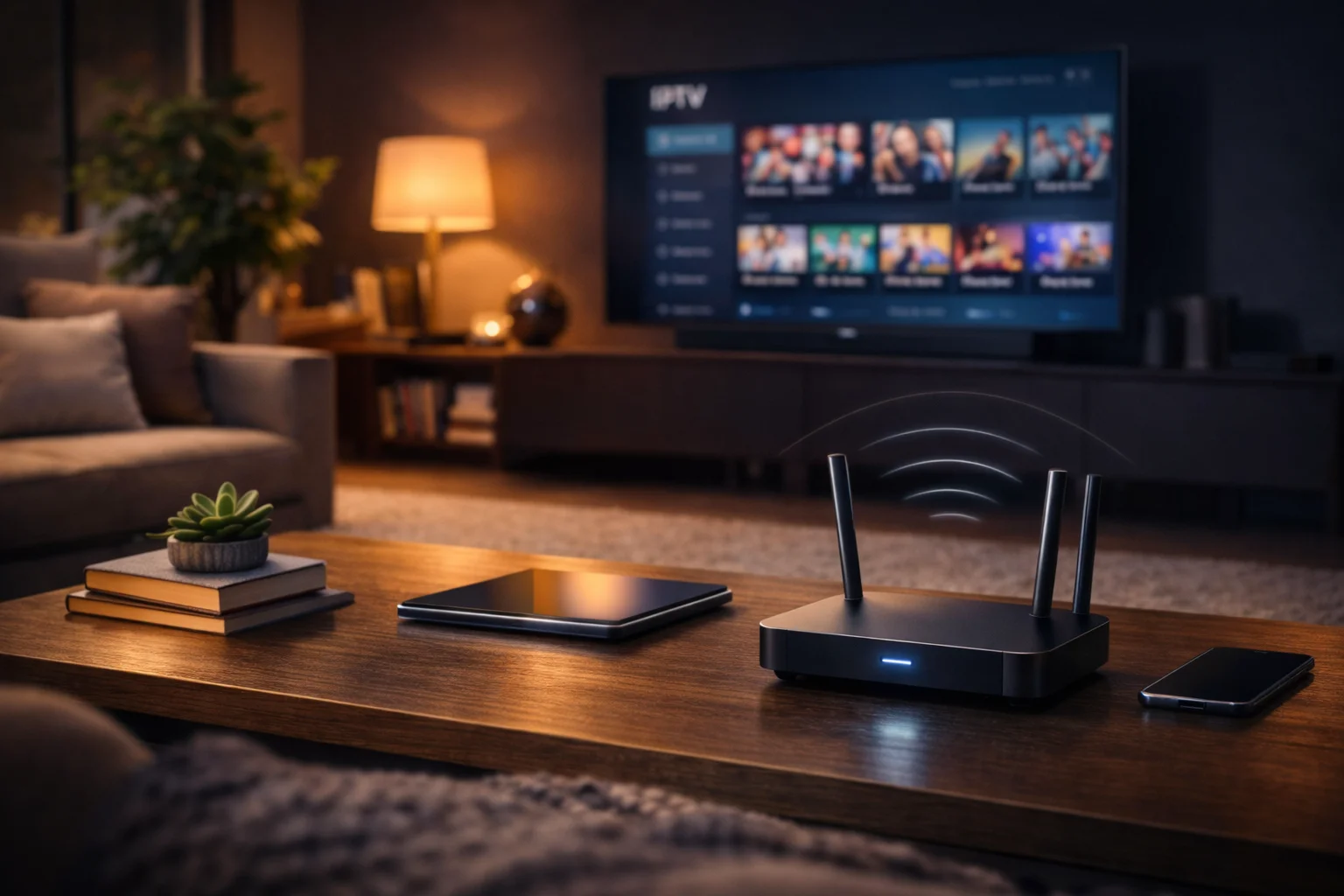
Firestick IPTV is an efficient way to get many channels in your living room, but it requires the right settings for fast channel switching and stable playback. In this guide, you’ll follow a practical journey to install and optimize IPTV on your Firestick and Amazon Fire TV, focusing on remote control behavior, limited storage space, and quick channel changes.
Therefore, we start with simple preparations in a living room where an older Smart TV is connected to a Firestick, sparse internal storage, and the goal of achieving smooth navigation. In practice, you will learn to connect external storage, manage sideloading, set up favorites, and troubleshoot app crashes.
To gain context, it is recommended to read the basics about IPTV and Amazon Fire TV if you want more background.
Prepare Firestick for Firestick IPTV
Make simple settings first, free up space, and check the network.
This saves time when you later install apps and EPG.
Start by updating your Firestick and checking available storage. This reduces the risk of installations being interrupted or apps crashing. If you have an older Smart TV and limited space, remove unused apps and clear cache in Settings > Apps.
Therefore, also check the Wi-Fi signal near the TV. If the signal is weak, streaming will be directly affected, leading to buffering and slow channel switches. This means that a fast router or better placement can provide dramatic improvements in playback.
If you plan to install apps from sources other than Amazon Appstore, enable developer options and ADB as needed. For more technical steps on ADB, see ADB.
Sideloading vs Official Apps
Learn the difference between apps from the Appstore and sideloading, understand the risks and benefits.
Choose a method depending on reliability and security.
Sideloading means installing an APK that is not available in Amazon Appstore. It provides access to more IPTV clients but comes with more risks. Therefore, you need to be careful about the source and understand that Amazon has tightened control against pirated apps, which can affect how well sideloaded apps function.
Thus, open Settings > My Fire TV > Developer Options to enable “Install unknown apps” for the Downloader app or an ADB tool. This allows you to install third-party apps, but also increases the attack surface if you download something from unreliable sources. Why this matters: safe and accurate sideloading provides functionality you otherwise won’t get from the official store.
If you prefer official apps, search the Amazon Appstore for stable IPTV clients and lean towards them first for easier support and automatic updates.
Install Popular Firestick IPTV Apps on Firestick
Step-by-step instructions for loading common IPTV clients, how to verify APK files, and where to find safe sources.
First, use the Downloader app or ADB to download the APK file. When using Downloader, enter the exact URL from a trusted source and hit “Go”. If you’re using ADB, connect a computer to your Firestick with ADB and commands like “adb install” to add the APK.
Therefore, always verify checksums or download from known developers to avoid malicious files. Why this matters: a corrupt or modified APK may contain spyware or ads that degrade the user experience.
Once the app is installed, go to Settings > Apps > Manage Installed Applications to grant necessary permissions and to disable auto-start for apps you don’t trust. This reduces memory load and improves stability.
Remote Control Settings and Favorite Lists
Optimize the remote for quick navigation, create favorites, and customize button functions.
Fewer button presses save time when switching channels.
If you want to quickly navigate between channels, the remote control is key. Start by setting up favorite lists in your IPTV app so that you access channels with few button presses. This reduces the need to open the entire channel interface each time.
Therefore, program utility functions like volume and power on/off via the remote control’s IR, or use Alexa support if you have a voice remote. Why this matters: a well-tuned remote makes channel switching much faster and reduces frustration in the living room.
When testing, keep in mind that “remote control” is sometimes misspelled as “fjärrokontroll” but the function you need is the remote control. Customize button functions in Settings > Controllers to match your habits.
Performance Optimization and Storage Management
Free up storage, move data, and prioritize memory for apps.
Here you will learn quick ways to speed up Firestick with simple everyday actions.
When you have an older Smart TV and a Firestick with limited internal memory, storage management is crucial. Clear cache and remove apps you don’t use. This frees up system memory and allows for faster app launches and channel switches.
Therefore, consider using external storage via USB adapter if your model supports it. An external device can hold recordings, logs, or large app data, reducing the load on internal flash. Why this is important: when internal storage reaches its limit, the system becomes slow and apps may crash more often.
Practical optimizations:
- Uninstall unnecessary apps
- Clear cache in Settings > Apps
- Move downloads to external storage when possible
Thus, channel surfing and EPG updates will be faster when storage space is preserved.
RecommendedFor reliable IPTV service with stable streaming and broad device support, consider our trusted option or explore another reliable provider.
Troubleshoot Common App Crashes on Firestick
Identify app crashes, gather logs, and fix common causes like memory shortage and incompatible updates.
App crashes are often the result of memory shortage, corrupt cache, or conflicts after an update. First, restart your Firestick. If the problem persists, clear the app’s cache and data in Settings > Apps > Manage Installed Applications.
Therefore, keep an eye on app versions and avoid experimental builds if you prioritize stability. Why this matters: many crashes occur after an app gets updated without cached data being cleared, leading to version conflicts.
For advanced troubleshooting, enable ADB and retrieve logs to see error messages. This helps you determine if the crash is caused by the app or by a system limitation.
Using External Storage and USB Adapter
The guide shows how to connect external storage via adapter, what can be moved, and what formats work best with Firestick.
Connect a USB adapter and a compatible USB device if your Firestick model supports OTG. Format the device in FAT32 or exFAT for best compatibility. When using external storage, some apps can move data or load temporary files there, alleviating internal memory.
Therefore, check the app’s settings to see if it can move cache or recordings to the external device. Why this matters: with external storage, the system is more forgiving on large EPG files and temporary data, improving channel switching and reducing crashes.
Practical tip: choose fast USB 3.0 devices for lower latency and more stable playback when apps read large files.
Security and Privacy Settings
Take control over apps, permissions, and updates.
A secure Firestick is less likely to receive unwanted ads or vulnerabilities.
Start by enabling or reviewing the permissions for installed apps. Go to Settings > Privacy > Sharing and Tracking and reduce data sharing if you want fewer recommendations and less background activity.
Therefore, avoid leaving “Install unknown apps” permanently enabled unless you need it. Why this matters: open permissions can make it easier for malicious apps to install themselves or gather data in the background.
Regularly update both Fire OS and apps via Amazon Appstore. This provides better security and compatibility. For more on developer tools and security, see Developer Tools.
Tips for Quick Channel Switching and EPG
Small changes in app settings and favorite management can lead to noticeably faster channel switches.
Learn how to optimize EPG for quicker loading.
EPG, or electronic program guide, can be heavy if the app loads too much metadata. First, limit EPG intervals in the app’s settings so that only necessary data is loaded. This results in faster initialization and quicker channel switches.
Therefore, create a short favorite list of your most-used channels instead of scrolling through the entire channel list. Why this matters: with fewer list entries, the time the app needs to render the interface and switch channels is reduced.
Additional optimizations:
- Use the app’s “quick start” or “minimize buffer” options if available
- Keep EPG data local if the app allows it
- See Electronic program guide for more background on how EPG works
Thus, channel changes in the living room become more immediate and less frustrating.