IPTV setup: 9 Simple Essential Steps for the Ultimate Guide
A calm, practical IPTV setup walkthrough that shows how to import playlists, link an EPG, and verify stable playback. Follow clear steps for reliable results with IPTV setup.

Tabitha Monroe
•
6 min read
•
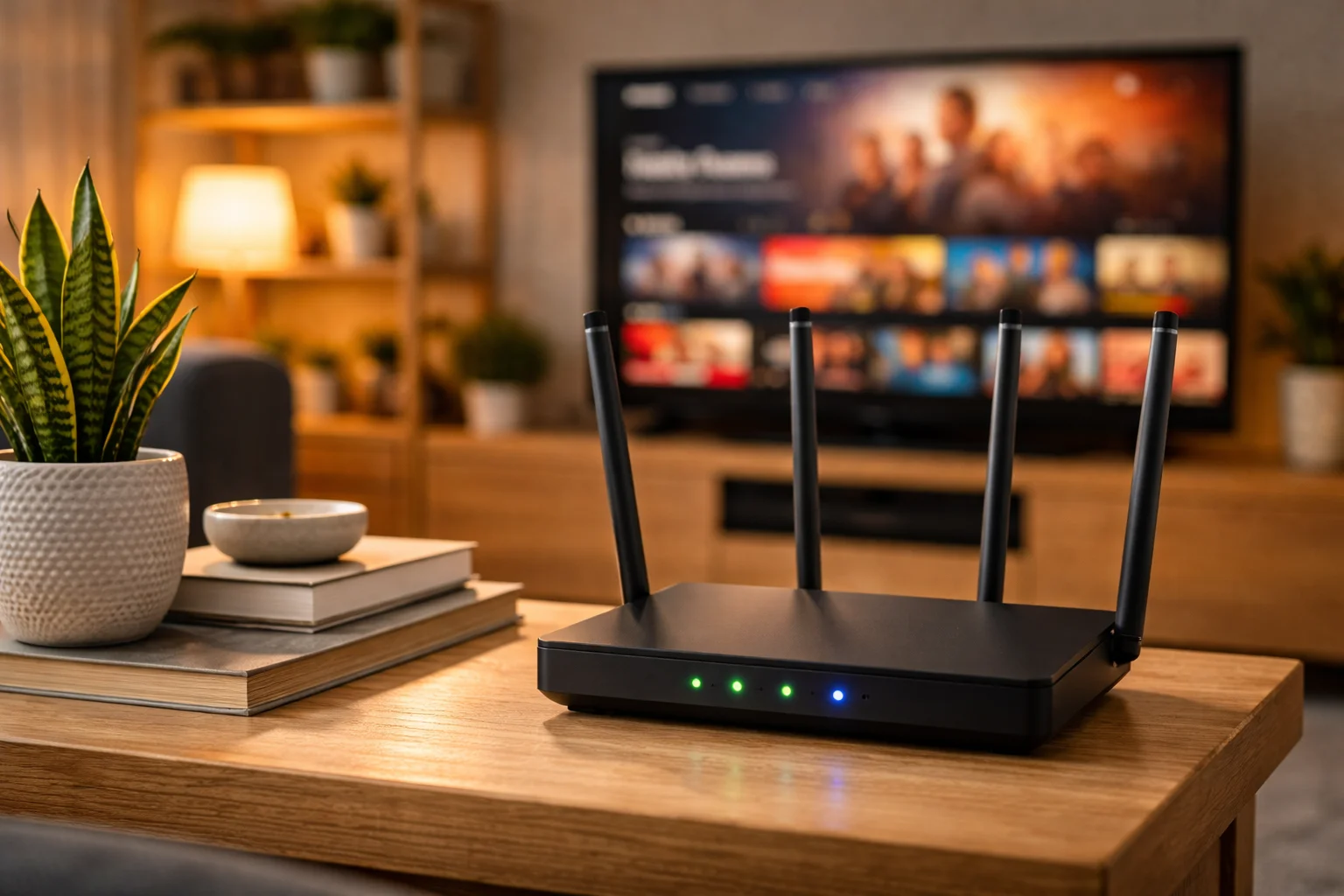
IPTV setup can feel like a rush when you only have an hour on a weeknight and an older smart TV to hand. You want to add an M3U playlist, get a program guide, and confirm channels play without buffering while Wi Fi is shared, and this guide walks you through that exact flow.
In practice, the goal is to remove guesswork. This article explains what to prepare, how to pick an app for your device, safe install steps, playlist and EPG linking, basic credential checks, playback testing, and simple follow ups. The steps are practical and paced so you can finish on a single evening and know what to do if something goes wrong.
What to prepare before you start for IPTV setup
List your device status and network limits.
Gather playlist and EPG info. Reduce variables so setup goes smoothly.
Start by checking two simple things: your smart TV model and how your Wi Fi performs. Know whether your TV runs Android TV, a proprietary OS, or supports apps via a media player. This matters because app availability and codec support vary by platform, and that affects which IPTV apps will work.
In practice, test the Wi Fi speed with a phone or laptop on the same network, and note peak and off-peak speeds. The catch is shared Wi Fi can drop throughput when other users stream, so aim for at least 10 Mbps steady per HD stream. If you expect multiple simultaneous streams, budget accordingly.
Also, find the M3U playlist URL or file and the EPG source if provided. Why it matters: having the exact playlist and EPG ready removes interruptions mid-setup and prevents mistakes when entering URLs or credentials.
Choosing the right app for your device
Compare app compatibility and codec support.
Prefer official or well-known apps. Match features to your priorities.
Begin by looking for apps that support M3U playlists and EPG mapping, and that are known to run on your device. Popular choices on many platforms include lightweight players and more full featured front ends. This matters because some apps handle live channel buffering and reconnection better than others.
In practice, check the device store first. For Android TV platforms, consult the Android TV developer pages or your device documentation to confirm app installation paths. The catch is older smart TVs may not have modern apps available, so you might prefer a small external player like an Android TV box or a media stick if app support is limited.
Also consider remote control usability and EPG presentation. Why it matters: a smoother user interface reduces frustration when browsing live channels and reading program guides.
Downloading and installing the IPTV app safely
Use official stores whenever possible.
Avoid risky APKs and unverified sources. Follow minimal permissions and updates.
Always prefer the device’s official app store to install software. Official stores reduce the risk of malware and generally provide automatic updates. Why it matters: installing from trusted sources protects your home network and personal data.
When you cannot find a needed app in the store, look for the developer’s official site or widely known repositories. In practice, sideload only when you verify the APK’s checksum and source reputation. The catch is sideloading can grant broad permissions, so be deliberate about what you install and revoke unnecessary permissions afterward.
Finally, keep firmware and the app up to date, and reboot the device after installation. Why it matters: updates often fix codec and playback bugs that directly affect buffering and channel stability.
Adding an M3U playlist and EPG
Import playlists correctly and link the EPG.
Map channels to guide data. Check channel order and duplicates quickly.
An M3U playlist is a simple text file or URL that lists streams. The M3U format is common and accepted by most players. Why it matters: a correct playlist is the backbone of channel access and naming.
In practice, open the IPTV app and choose the import or playlist option, then paste the M3U URL or upload the file. Next, link the program guide source, commonly provided as XMLTV or another EPG format. You can read about EPG basics at the EPG page. The catch is mismatched channel IDs will show empty guide entries, so confirm the provider’s EPG mapping instructions if available.
If the app allows, tidy channel groups and remove obvious duplicates. Why it matters: a clean channel list makes verification faster and reduces confusion when you test multiple streams.
Account and credential checks
Verify login details and expiration.
Test URLs with a browser if needed. Avoid entering credentials in unknown apps.
If your IPTV provider requires credentials, first confirm username, password, and any device limits. Some services bind to MAC addresses or limit concurrent streams. This matters because login errors and device caps are common reasons a playlist fails.
In practice, test credentials in a browser or a known safe player if the IPTV app shows authentication errors. The catch is some providers rotate tokens or require a dashboard to activate devices, so check the provider’s control panel if a login fails.
Also record credential expiry dates and any setup notes in a secure place. Why it matters: having this information handy avoids repeated lockouts and speeds troubleshooting when you run the playback tests.
RecommendedFor reliable IPTV service with stable streaming and broad device support, consider our trusted option or explore another reliable provider.
Testing a range of channels and stream types
Check SD and HD channels, VOD, and different codecs.
Watch for buffering and audio sync issues. Log problem channels.
Start testing by sampling low resolution streams, then move to HD and any 4K channels you plan to use. Observe initial start time, buffering events, and audio sync. Why it matters: different streams use different bitrates and codecs, and failures often show on higher bitrate channels first.
In practice, play a live HD channel for several minutes while someone else uses the network. The catch is shared Wi Fi will expose contention, so this reveals realistic behavior. Also test VOD and timeshift if available because those use the same CDN paths and can show different issues.
Record which channels fail and whether the app shows error messages or stalls. Why it matters: a short failure log helps you report exactly what to fix to your provider or to adjust router quality of service settings.
Dealing with geo blocks and regional feeds
Understand when streams are region locked.
Use legal options and provider alternatives. Avoid risky circumvention.
Some channels are restricted to specific countries and may not play when your home IP appears outside allowed regions. This is a geographical restriction, not usually a playback bug. Why it matters: recognizing geo restrictions prevents wasted time chasing false fixes.
If a channel is region locked, check whether the provider offers region-specific feeds or an authorized workaround. In practice, contact the provider before trying to change your network setup. The catch is third party circumvention tools can violate terms of service and reduce security, so prefer official options.
Also consider local alternatives or catch up services that provide the same content. Why it matters: legal, stable feeds reduce downtime and keep your setup maintainable.
Saving settings and scheduling backups
Export playlists and EPG links.
Save app configs and note device specifics. Automate backups where possible.
Once you have a working configuration, export the M3U file or save the playlist URL and EPG link. Many apps let you back up settings to cloud storage or a local file. Why it matters: playlists and EPG can change, and backups let you restore quickly without repeating steps.
In practice, keep a small text file with the playlist URL, EPG URL, login notes, device model, and the date you set it up. The catch is some special app settings are not exportable, so take screenshots of advanced settings if needed.
Finally, set a calendar reminder to check playlists and EPG a week later and again after a month. Why it matters: feeds often change and periodic checks prevent surprise outages.
First week checklist to confirm stability
Daily quick checks for the first week.
Note patterns and collect logs. Decide on changes or move to long term maintenance.
On the first night, after initial setup, run a short checklist: confirm channel start times, quick channel zapping, EPG entries, and remote control behavior. Why it matters: early checks catch common onboarding issues before they become entrenched.
In practice, repeat these checks on different evenings and during typical busy hours for your household. The catch is some issues only appear under load, so testing when other users stream gives realistic insight. Also capture app logs or screenshots for any errors you cannot resolve.
If things are stable after a week, move settings into routine maintenance: monthly EPG checks, app updates, and a scheduled backup. Why it matters: a small maintenance habit dramatically improves long term reliability and saves time later.