IPTV devices: 9 Practical Essential Picks for 2026
A clear guide to choosing IPTV devices, weighing performance, openness, and price so you can pick the best device for your network and living room.

Freya Collins
•
6 min read
•
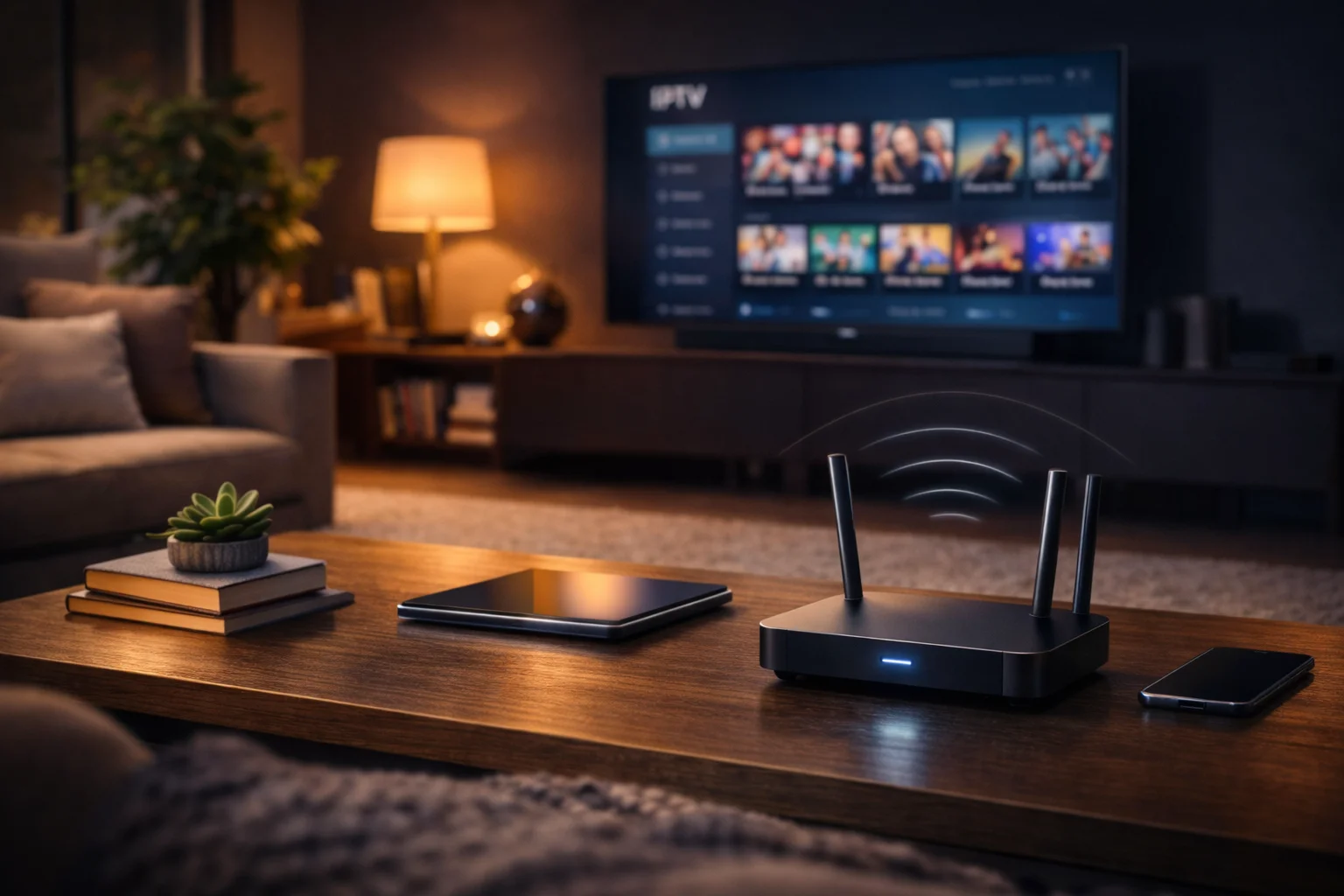
IPTV devices are the front door to any streaming setup, and the choice you make affects playback reliability, updates, and app compatibility from day one. In this guide I walk through the trade offs between streaming sticks, Android TV boxes, and smart TVs so you can match a device to your home network and viewing habits.
That’s why the rest of the article is organized as practical micro situations, short lived living room moments that show when a faster Wi Fi radio, wired Ethernet, or extra storage actually matters. In practice, each section gives a clear rule of thumb and the networking or app check you should run before buying.
Why device choice matters for IPTV
How hardware, software updates, and networking shape the real-world experience, what to expect when switching devices, and why a cheap stick can still be a bad choice for some setups.
Device choice affects more than just picture quality. A device determines which IPTV apps run reliably, whether you can use wired Ethernet, how the remote behaves, and how often firmware updates fix playback bugs.
That’s why I start with the basics: hardware matters for decoding efficiency, memory for playlist handling, and the OS for sideloading or installing third-party players. If you pick a device with weak Wi Fi or limited RAM, you will see buffering or app crashes with large channel lists.
In practice, think of device choice as network design carried to the couch. This means you should align device capabilities with your home network: prefer Ethernet if you use multicast or heavy single-stream bitrates, and prefer devices with modern Wi Fi radios if you rely on wireless. Understanding these trade offs saves time and avoids returns.
Stick versus box versus smart TV
A short lived decision: when a stick is fine, when a box pays off, and when a smart TV is the most convenient option.
Learn the real trade offs you will notice day to day.
Sticks are compact and cheap, boxes are flexible and powerful, and smart TVs are convenient but less open. Sticks excel for simple streaming where you want a tidy living room and minimal setup. Boxes excel when you need Ethernet, storage, or frequent sideloading. Smart TVs remove an external device, but updates and app availability vary by manufacturer.
On the other hand, a stick with limited memory can struggle with large IPTV playlists and background tasks. This means a box with more RAM and internal storage will handle large playlists, EPG parsing, and background recorders more reliably.
In practice, choose a stick if you need simplicity and portability, a box if you want openness and local network options, and a smart TV if you prioritize a single remote and a clean install. Each choice has implications for app compatibility and long term support, so factor update cadence into the buying decision.
Recommended IPTV devices for 2026 use cases
Quick recommendations mapped to common household scenarios, focusing on reliable streaming, wired connections, and openness for sideloading.
See which device fits a particular living room constraint.
For 2026, pick a device that matches how you will use IPTV. If you watch on a single living room TV and value simplicity, a modern streaming stick with good Wi Fi is often enough. If you host multiple tuners or use multicast and heavy playlists, pick an Android TV box with Ethernet and ample storage.
In practice, here are direct use-case matches:
- Small bedroom or travel, minimal setup: modern streaming stick with Wi Fi 6E if available.
- Primary living room with wired network: Android TV box with gigabit Ethernet and removable storage.
- Single-device household preferring built-in apps: smart TV with an active app ecosystem.
That’s why I recommend checking device specs for CPU class, RAM, and available ports before buying. Also verify that the device supports the IPTV player you plan to use and that the vendor provides at least a couple of years of firmware updates. For reference, see IPTV for service basics and compatibility considerations.
Networking features that matter, like Wi Fi 6E and ethernet
Which radios and ports reduce buffering, when wired Ethernet is required, and how to check if your home network supports higher single-stream bitrates and multicast.
Wi Fi generation and Ethernet ports are central to consistent IPTV playback. Wi Fi 6E adds the 6 GHz band, which reduces congestion in crowded apartments. Ethernet provides the most predictable latency and throughput, which matters when you stream high bitrate channels or use many concurrent streams.
That’s why I stress verifying both the device and your router. If a device advertises Wi Fi 6E, check that your router and environment support 6 GHz channels. This matters because a device with Wi Fi 6E will only help if the router and the path are compatible.
In practice, prefer gigabit Ethernet for multicast or when you run a home NAS for recordings. Also consider devices that list explicit multicast or IGMP proxy support if your IPTV provider relies on multicast. For standards background, see Wi-Fi 6E and Ethernet.
Storage, memory, and how they affect playlists
Why RAM and storage are not optional for big playlists, how internal storage affects caching and EPG, and when an SD card or USB drive is a necessary upgrade.
RAM determines how many apps and playlist entries the device can hold in memory, while internal storage matters for caching, EPG databases, and downloaded segments. Low RAM devices often struggle with very large M3U lists or with EPG parsing, which can cause crashes or slow channel switching.
That’s why you should prefer devices with at least 3 to 4 GB of RAM if you plan to use large playlists, electronic program guide functions, or background recording. This matters because insufficient memory leads to repeated re-parsing of playlists and poor responsiveness.
In practice, if a device supports expandable storage, use it for EPG caches and app data. If it does not, plan regular playlist pruning or choose a device with more built-in storage for a smoother experience.
RecommendedFor reliable IPTV service with stable streaming and broad device support, consider our trusted option or explore another reliable provider.
Sideloading and app compatibility concerns
How openness affects which IPTV apps you can run, when sideloading is necessary, and the practical checks to perform before purchasing a device.
Sideloading lets you install apps that are not on the vendor store, which is useful for some IPTV players. Android TV based boxes are generally the most permissive, while some smart TV platforms and closed sticks restrict sideloading or require developer modes.
That’s why you should check the device OS and sideloading policy before you buy. This matters because an incompatible app store can block your chosen IPTV player, forcing you to switch devices or use workarounds.
In practice, verify the following: whether the device exposes USB for sideloading, if ADB over network is supported, and whether the vendor locks down app permissions. For platform references, see Android TV. Also remember that sideloading can introduce security risks, so only install trusted packages.
Remote control and user interface differences
Why remote responsiveness, voice features, and input methods change daily usability, and how UI choices impact quick channel switching and playlist navigation.
Remote hardware and UI design determine how fast you can navigate large channel lists. A precise remote with a dedicated number pad or a responsive directional pad reduces the time to switch channels, and voice search helps when app EPGs are limited.
On the other hand, some remotes pair to the TV instead of the device, which can cause confusion when the device sleeps. This means you should test whether the remote wakes the device reliably and whether it maps keys to your IPTV app.
In practice, prefer devices with remotes that offer programmable buttons or predictable IR/Bluetooth behavior if you switch frequently. Also consider the UI layout of the vendor launcher; cleaner launchers reduce accidental app launches and make daily use less frustrating.
Budget picks and when to pay more
A no-nonsense take on inexpensive sticks, the thresholds where spending more pays for reliability, and the features that justify a higher price.
Cheap sticks cover basic streaming, but the cost savings can evaporate if you experience buffering, app crashes, or short vendor support windows. Budget devices are fine for small playlists and light use, but if you need Ethernet, advanced codecs, or storage, paying more for a box is justified.
That’s why consider three price tiers: ultra-budget for casual viewing, mid-range for regular IPTV use with better radios and storage, and premium for multiroom, heavy playlists, or advanced networking. This matters because a more expensive device can reduce hands-on maintenance and provide longer firmware support.
In practice, spend more when you need wired Ethernet, expandable storage, or a known update policy. If you buy a stick, verify refund policies and test extensively in the return window.
Setup tips for optimal playback on each device
Practical, step by step configuration tips for sticks, boxes, and smart TVs, focused on network settings, app priorities, and simple diagnostics to reduce buffering.
First, always update firmware and the IPTV app. Then, prefer Ethernet where possible, or position devices to minimize Wi Fi interference. Adjust player settings to lower buffer size if you must conserve memory, or increase buffer size when network jitter is present.
That’s why you should run a quick local test: stream a known high bitrate channel and measure behavior. This matters because a single test will reveal whether your network or the device is the bottleneck.
In practice, follow these quick checks:
- Update device firmware and app
- Enable Ethernet or test Wi Fi signal strength at the TV location
- Use a wired connection for multicast or multiple streams
- Monitor CPU and memory usage if accessible
If playback still stutters, check DNS settings and try an alternative player. Also consider using a lightweight external tuner or a networked transcoder if your device cannot handle high bitrate streams.